Convert images to JPG
Turn PNG or WebP into JPG (JPEG), a format that opens anywhere.
1. Choose images to convert to JPG
Works with PNG, WebP, GIF, BMP and AVIF.
Drag and drop images here
or
2. Choose quality
Lower numbers mean smaller files. Changes apply right away.
3. Download them all
Save all converted images together in one ZIP file.
Everything happens on this device. Your images are never uploaded.
JPG can't be transparent, so transparent areas are filled with white.
Animated GIFs keep only the first frame.
Found it useful? We'd love a share
How to use
1. Choose images
Tap “Choose files” and pick the photos or images you want to convert. You can pick as many as you like.
Drag and drop images anywhere on the page, or use “Choose files”. Convert as many PNG, WebP, GIF, BMP and AVIF images as you like at once.
2. They turn into JPG right away
Images are converted to JPG the moment you choose them, and the file sizes before and after are shown. There's no convert button to press. Transparent areas are filled with white.
Images are converted to JPG the moment you choose them, and the file sizes before and after are shown. There's no convert button to press. Transparent areas are filled with white.
3. Choose quality and compare
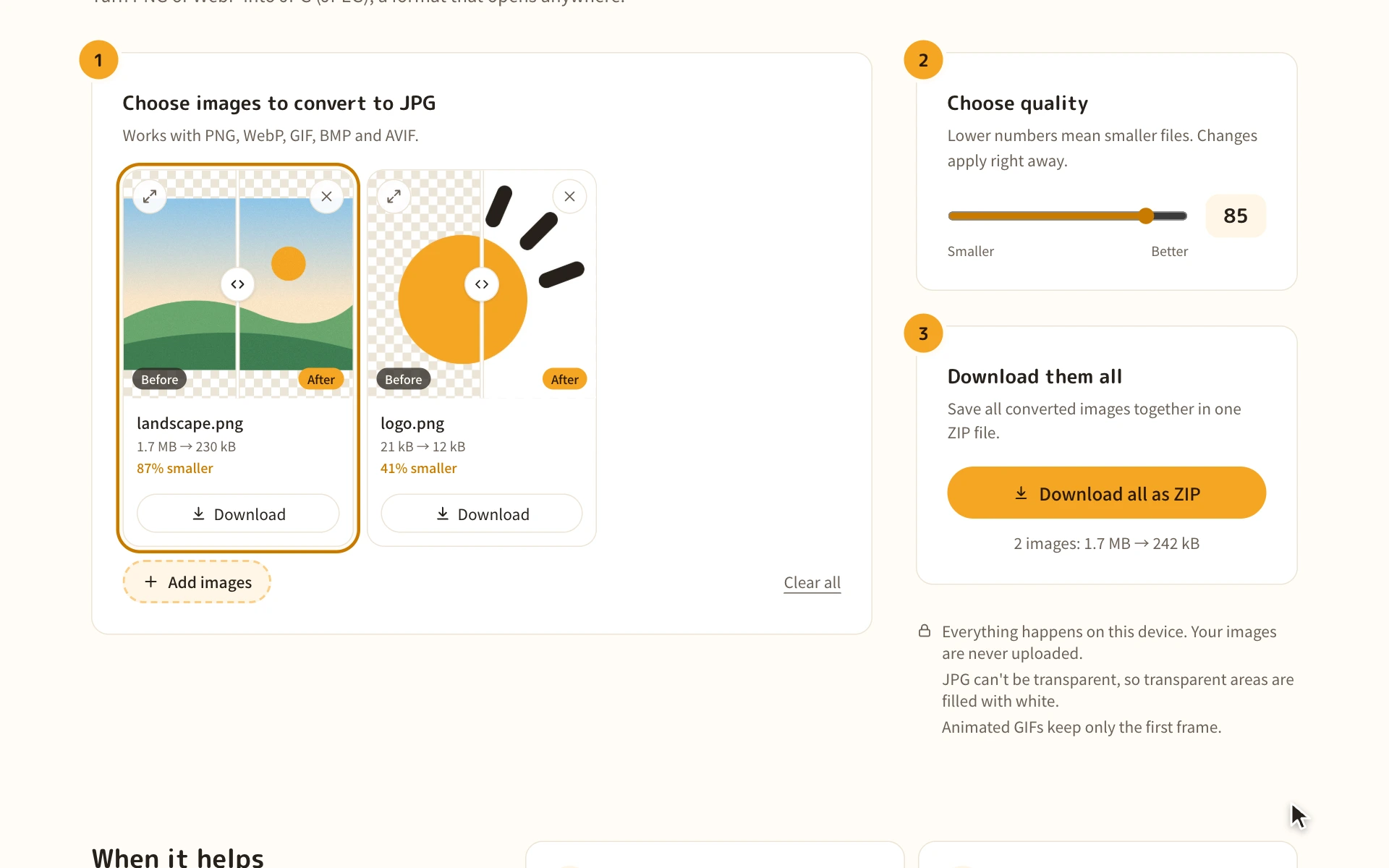
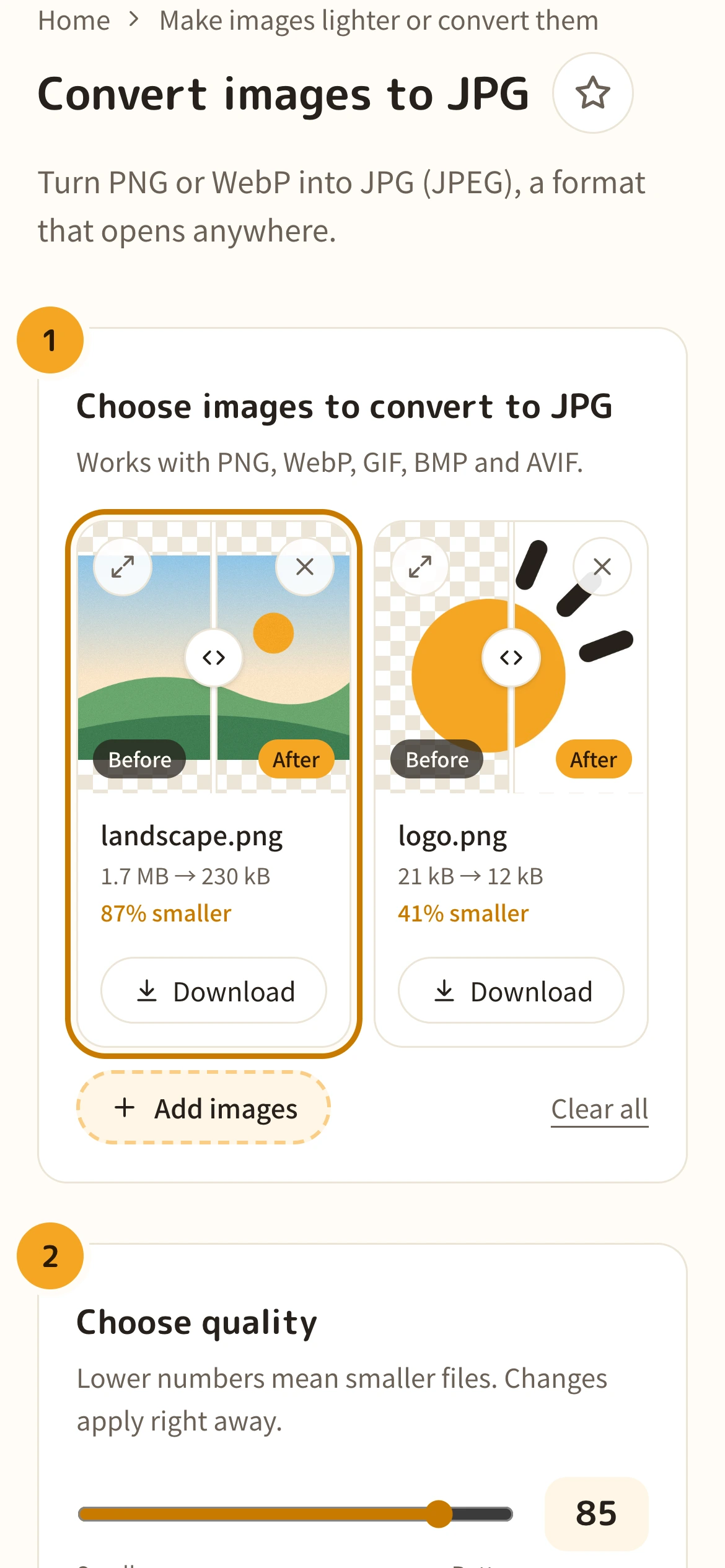
Use the “Quality” slider to balance size and quality. It starts at 85. Slide your finger along the line on an image to compare before and after.
Use the “Quality” slider to balance size and quality. It starts at 85. Drag the line on an image left and right to compare before and after, or use the top-left button to check it in a larger view.
4. Download
Use “Download all as ZIP” to save every image at once. On iPhone, files are saved to Downloads in the Files app.
Use “Download all as ZIP” to save every image at once. To save one at a time, use each image's “Download” button.
When it helps
Submit to forms that only accept JPG
Some places, like application and job forms, only accept JPG. Convert your PNG or WebP images and submit them as they are.
Anyone filling in applications
Lighten large PNGs and screenshots
Photos saved as PNG tend to be very large. As JPG, they can shrink to a fraction of the size while looking almost the same.
Anyone handling photos and screenshots
Send by email or chat
Whatever computer or phone the other person uses, they can open a JPG. Smaller files also fit more easily under email attachment limits.
Anyone sending images to others
Get photos printed
Most photo printing services accept JPG. Use it when they won't take WebP or PNG.
Anyone printing photos
When to stick with PNG or WebP
- Logos, images with text and screenshots can blur around the text as JPG. Keep them as PNG.
- To keep a transparent background, use PNG or WebP. JPG fills it with white.
- For images on a website, WebP looks the same and is even lighter.
About JPG
JPG (JPEG) is an image format for saving photos at a small size. Almost all software, apps, phones and printers can open it, making it the most widely used image format. Files end in .jpg or .jpeg, but they're the same thing.
By dropping fine details the eye barely notices, it can make photos a fraction of the size of PNG. In return, quality drops a little with each save, sharp text and lines tend to blur, and transparency isn't supported.
| JPG | PNG | WebP | |
|---|---|---|---|
| Quality | Drops a little with each save | Never lost | Your choice |
| Photo size | Small | Large | Even smaller |
| Transparency | No | Yes | Yes |
| Opens in | Almost everything | Almost everything | Major browsers |
| Best for | Photos | Text, diagrams, logos | Images on the web |
FAQ
Answers to the things people most often wonder about before converting.
Are my images sent anywhere?
No. Everything is converted inside your browser on your own device. Your images are never uploaded to a server.
Is JPG different from JPEG?
No, they're the same format. Older versions of Windows limited file extensions to three letters, so .jpg became common. This tool saves files as .jpg.
What quality should I choose?
It starts at 85, where photos look almost no different. To make files even smaller, try going down to around 70. For images with text, a higher setting of 90 or more works better.
What happens to transparent areas?
JPG can't be transparent, so they're filled with white. To keep transparency, convert to PNG or WebP instead.
Does converting to JPG lower quality?
JPG makes files smaller by dropping a little quality, so the result won't be identical to the original. With a higher quality setting, though, the difference is hard to see. Drag the line on an image to compare before and after.
Can I convert iPhone photos (HEIC)?
This tool can't read HEIC files. For HEIC photos, use Convert HEIC to JPG. When you pick photos on an iPhone, they're usually handed over as JPEG automatically, so in most cases you can use them without converting.
Can I convert animated GIFs?
Yes, but only the first frame is kept, as a still image.
What happens to photo info like location (Exif)?
It isn't included in the converted image, so this is also handy for removing location data before sharing. The photo's orientation is applied correctly.
Is it free?
Yes. No sign-up, and no ads.
More tools
- Convert images to WebP
Turn PNG or JPEG into WebP, a lighter format that still looks great.
- Convert images to PNG
Turn JPEG or WebP into PNG, a format that never loses quality.
- Convert HEIC to WebP
Turn iPhone HEIC photos into WebP, a lighter format that's easy to use.
- Convert HEIC to PNG
Turn iPhone HEIC photos into PNG, which opens anywhere, with no loss of quality.
- Convert HEIC to JPG
Turn iPhone HEIC photos into JPG (JPEG), a format that opens anywhere.
- Remove photo location (Exif)
Remove location, date taken and other details from photos without losing quality.