Convert HEIC to WebP
Turn iPhone HEIC photos into WebP, a lighter format that's easy to use.
1. Choose HEIC photos to convert to WebP
Works with HEIC (HEIF) photos taken on iPhone.
Drag and drop images here
or
2. Choose quality
Lower numbers mean smaller files. Changes apply right away.
3. Download them all
Save all converted images together in one ZIP file.
Everything happens on this device. Your images are never uploaded.
Reading HEIC can take a few seconds per photo.
Found it useful? We'd love a share
How to use
1. Choose HEIC photos
Tap “Choose files” and pick the HEIC photos you want to convert. You can pick as many as you like.
Drag and drop iPhone photos (HEIC) you've moved to your computer anywhere on the page, or use “Choose files”. Convert as many as you like at once.
2. They turn into WebP right away
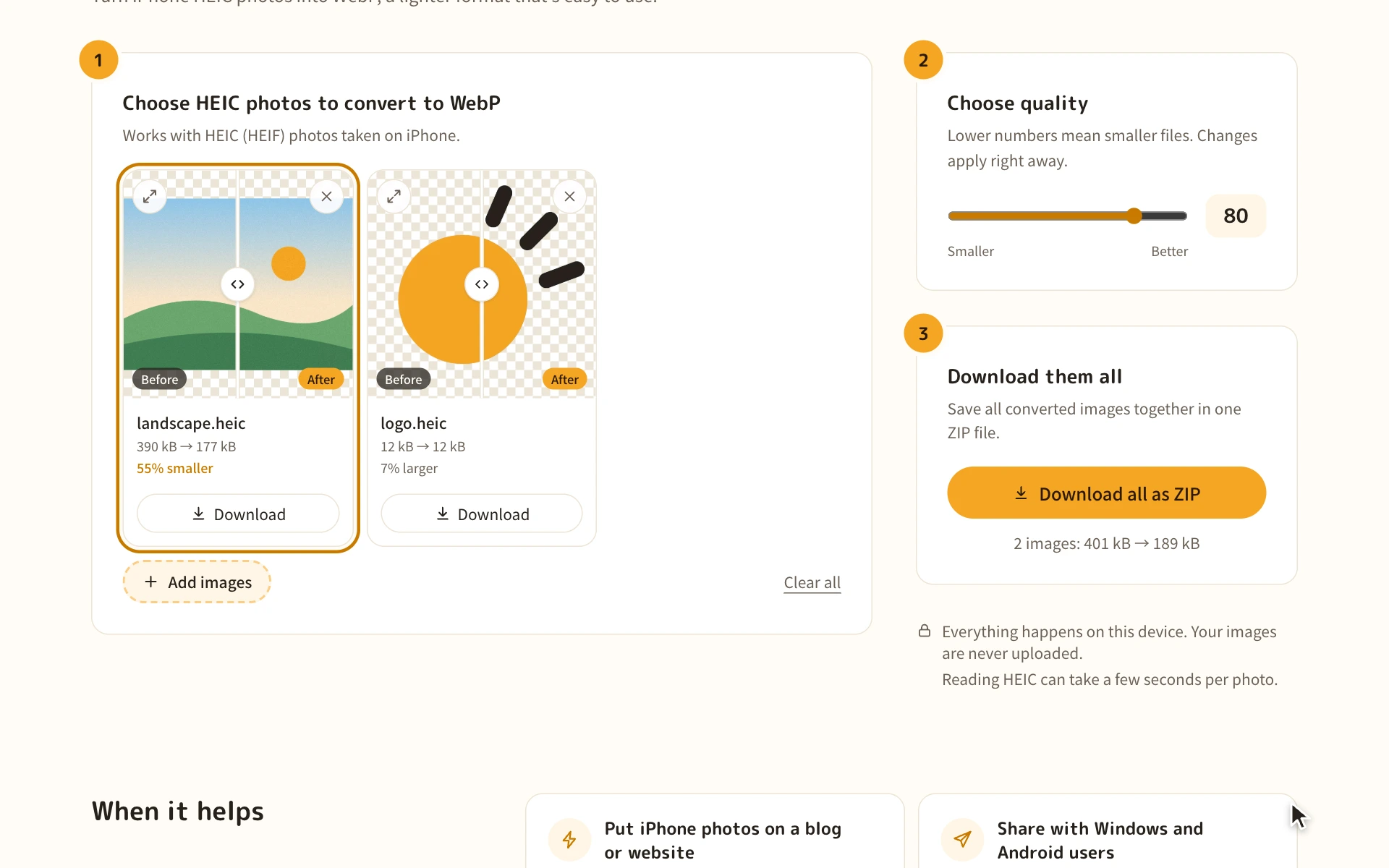
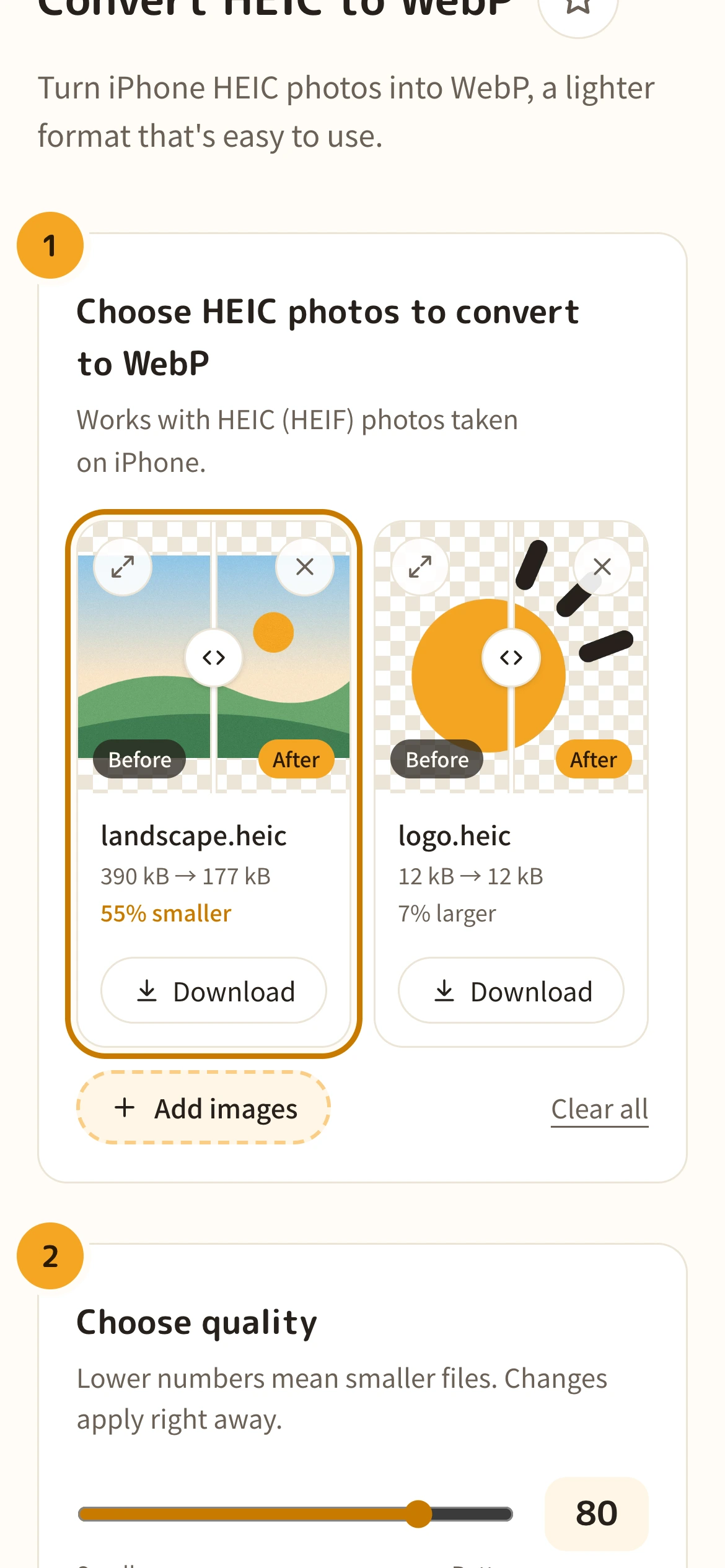
Photos are converted to WebP as soon as you choose them. Reading HEIC can take a few seconds per photo. When it's done, the file sizes before and after are shown.
Photos are converted to WebP as soon as you choose them. Reading HEIC can take a few seconds per photo. When it's done, the file sizes before and after are shown.
3. Choose quality and compare
Use the “Quality” slider to balance size and quality. It starts at 80. Slide your finger along the line on a photo to compare before and after.
Use the “Quality” slider to balance size and quality. It starts at 80. Drag the line on a photo left and right to compare before and after, or use the top-left button to check it in a larger view.
4. Download
Use “Download all as ZIP” to save every photo at once. On iPhone, files are saved to Downloads in the Files app.
Use “Download all as ZIP” to save every photo at once. To save one at a time, use each photo's “Download” button.
When it helps
Put iPhone photos on a blog or website
Chrome and Firefox can't display HEIC. As WebP, your photos show in every major browser today, and pages stay light.
People posting photos on blogs and sites
Share with Windows and Android users
HEIC photos sometimes won't open on Windows or Android. A WebP opens right in the browser.
People sharing iPhone photos
Make photos lighter for the web
An iPhone photo can be several MB. Pick a quality and convert to WebP to get a web-friendly size that still looks good.
People handling lots of photos
Use photos in apps and services that can't read HEIC
Plenty of image editors and web services don't support HEIC. WebP works with major browsers and web services today.
People editing photos on a computer
When to keep HEIC or use another format
- If you only use the photos on iPhone or Mac, keeping HEIC is fine. It's a compact format for its quality.
- Where only JPG is accepted, such as some forms and older software, convert to JPG instead.
- For photos you'll keep editing, keep the original HEIC files too.
About HEIC
HEIC (HEIF) is the format iPhone uses to save photos by default. It stores photos at roughly half the size of a JPEG of similar quality.
However, many environments can't open HEIC directly, such as Chrome, Firefox and some apps on Windows and Android. Converting to WebP keeps photos light and makes them viewable in every major browser.
| WebP | HEIC | JPG | |
|---|---|---|---|
| File size | Small | Small | Medium |
| In browsers | All major browsers | Safari only | All |
| Windows & Android | Opens in many apps | Sometimes won't open | Almost everything |
| Transparency | Yes | Yes | No |
| Best for | The web | Storing on iPhone/Mac | Sending and printing |
FAQ
Answers to the things people most often wonder about before converting.
Are my photos sent anywhere?
No. Everything is converted inside your browser on your own device. Your photos are never uploaded to a server.
What is HEIC?
It's the format iPhone uses to save photos by default, also called HEIF. It's smaller than JPEG, but some environments, such as Chrome and Windows, can't open it directly.
How can I tell if my iPhone photos are HEIC?
If the file ends in .heic, it's HEIC. On iPhone, go to Settings → Camera → Formats: “High Efficiency” saves HEIC, and “Most Compatible” saves JPEG.
What quality should I choose?
It starts at 80, where most photos look no different. To make files even smaller, try going down to around 60.
The file got bigger after converting.
HEIC is already a compact format, so at high quality settings WebP can end up larger. Lower the quality to make it smaller.
Can I convert Live Photos?
The still image is converted. The moving part (video) isn't.
Why does converting take a while?
Browsers other than Safari can't read HEIC on their own, so a HEIC reader program is used. It can take a few seconds per photo, and the first time also loads the program (about 3 MB). The program is part of this site, and your photos are never sent anywhere.
What happens to photo info like location (Exif)?
It isn't included in the converted image, so this is also handy for removing location data before sharing. The photo's orientation is applied correctly.
Is it free?
Yes. No sign-up, and no ads.
More tools
- Convert images to WebP
Turn PNG or JPEG into WebP, a lighter format that still looks great.
- Convert images to PNG
Turn JPEG or WebP into PNG, a format that never loses quality.
- Convert images to JPG
Turn PNG or WebP into JPG (JPEG), a format that opens anywhere.
- Convert HEIC to PNG
Turn iPhone HEIC photos into PNG, which opens anywhere, with no loss of quality.
- Convert HEIC to JPG
Turn iPhone HEIC photos into JPG (JPEG), a format that opens anywhere.
- Remove photo location (Exif)
Remove location, date taken and other details from photos without losing quality.